Product design · AI web design tool
GenLab.
AI-first web design.
Crafted by designers, down to the last detail.
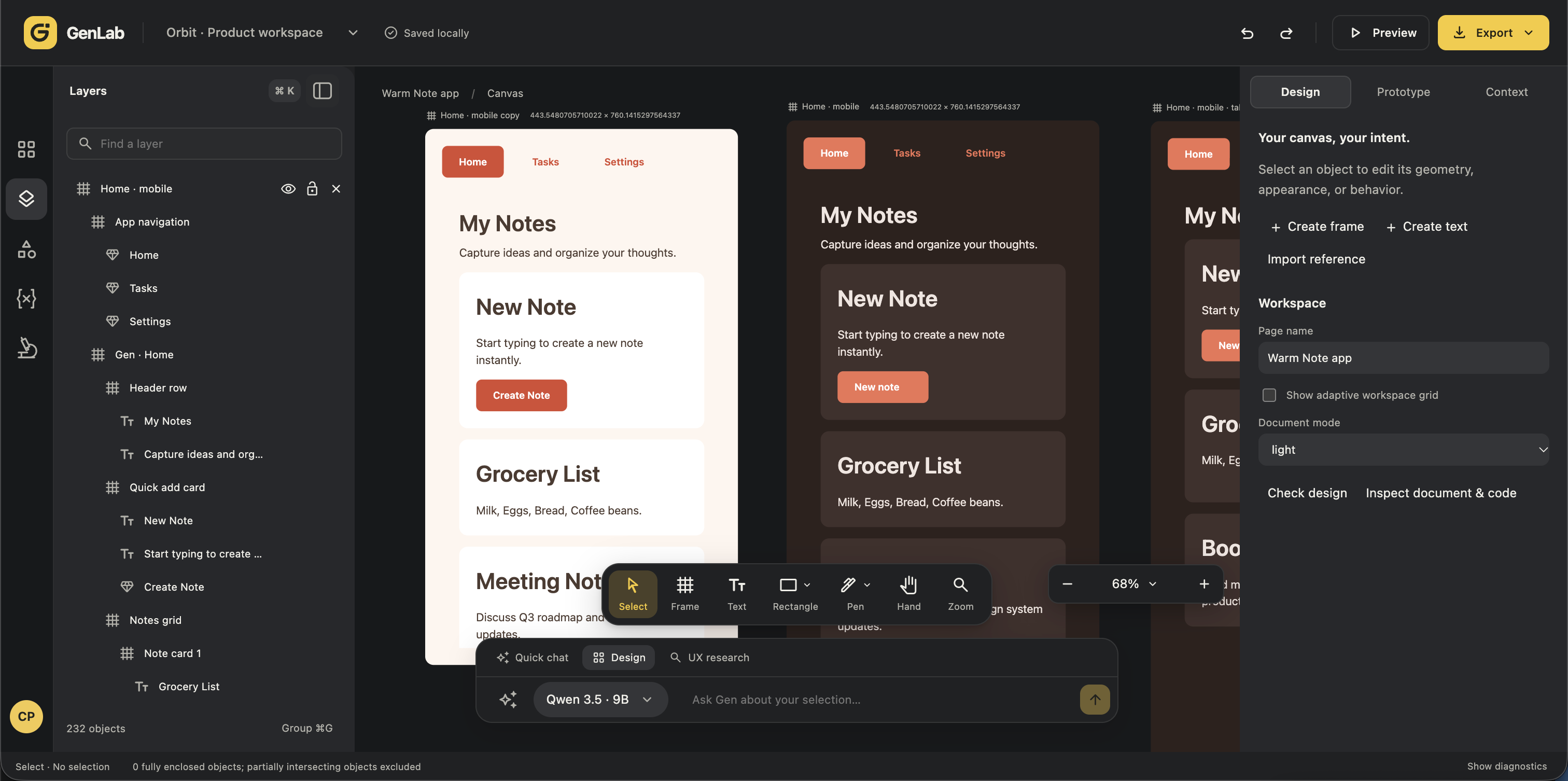
The power of AI.
The precision of craft.
GenLab is a web design tool built for professional designers in an AI era. It brings AI assistance into a familiar design workspace, where layouts, objects, and details remain editable by hand. The idea is to make generation and deliberate design part of the same creative process, with the designer shaping the final result.
- Focus
- UI UX & product design
- Audience
- Professional designers
- Experience
- AI + hands-on web design
01 / UI UX process
Designing the way in.
The first experience needs as much care as the canvas. This account and onboarding study connects the reason to try GenLab with a clear path to creating—and returning to—your own work.
The starting problem
A powerful editor.
An unclear first step.
GenLab opened directly into a dense editor and sample project. The onboarding work introduces a project home, account entry, and guidance at the moment a new designer needs it.
The design question
How do we get from
sign-up to a first frame?
Ask for the minimum, show what comes next, and keep recovery close. A mistyped email, an expired link, or a failed save should leave a clear way forward.
- 01
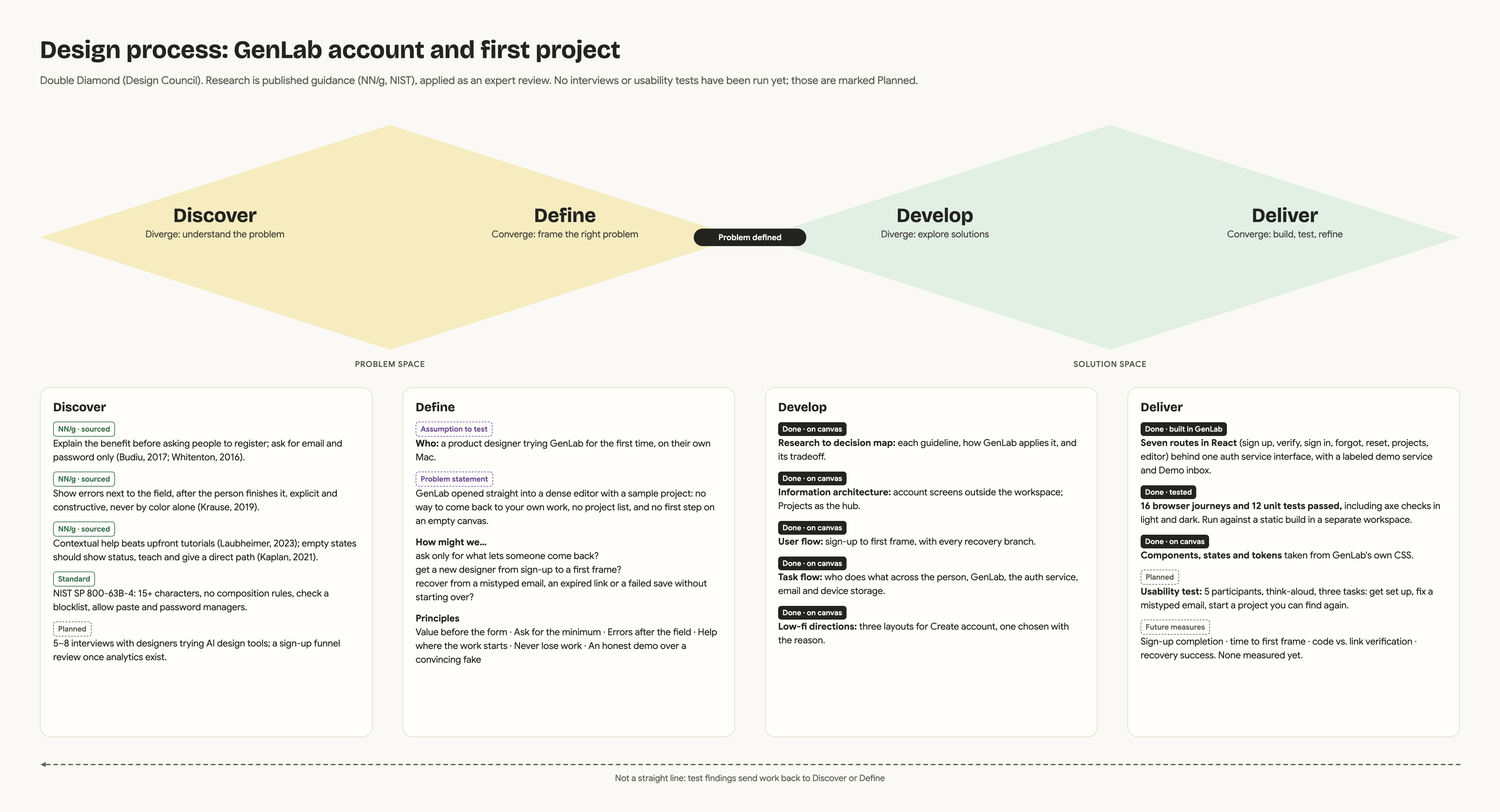
Discover
Review published guidance on registration, forms, errors, and contextual help.
- 02
Define
Give a new designer a clear first step, a home for projects, and a way back to their work.
- 03
Develop
Compare account layouts, map the journeys, and design recovery alongside the main path.
- 04
Deliver
Build the demo and check its journeys. Test the next iteration with designers.
Research-informed design: published guidance and an expert review informed this work. Interviews, usability testing, and activation measures are still planned.
Map the experience before the screens.
Projects becomes the hub. The task flow makes each hand-off—and the way back from a failure—visible.
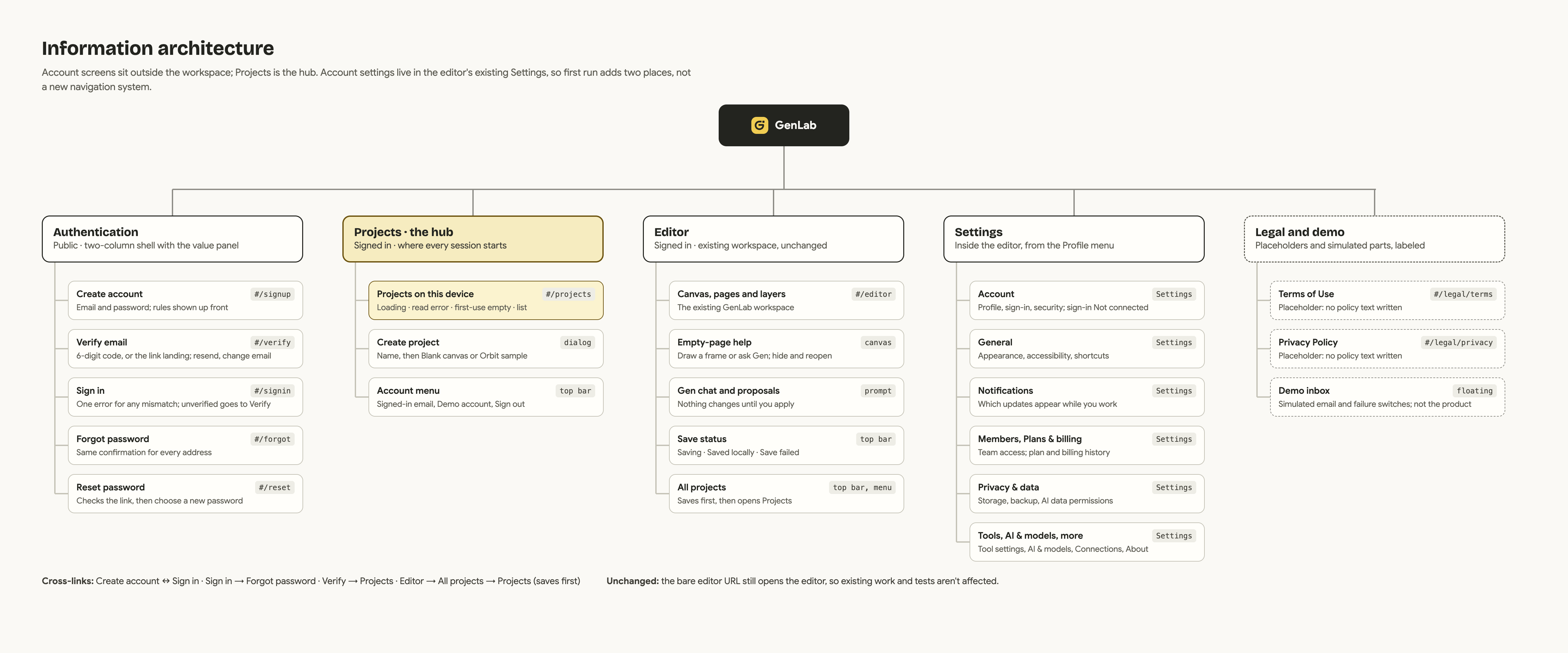
Account screens sit outside the workspace. Projects connects first use and return visits, while profile and account controls stay inside the editor’s Settings.
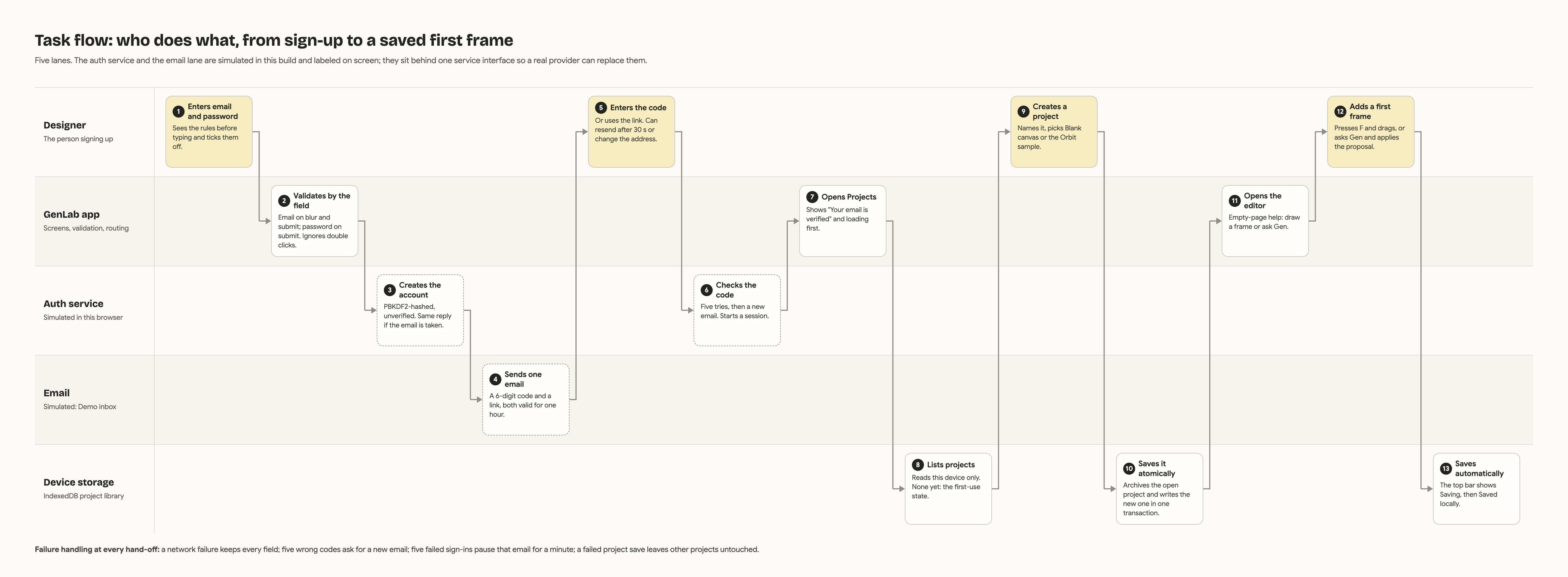
Five swimlanes trace the designer, GenLab, the simulated account service, demo email, and device storage from registration to a saved first frame.
02 / Account & onboarding
A clear way in.
A way back.
Follow the journey from account creation and verification to a first project and an editable frame. Returning designers, incorrect details, expired links, and save failures are part of the same flow.
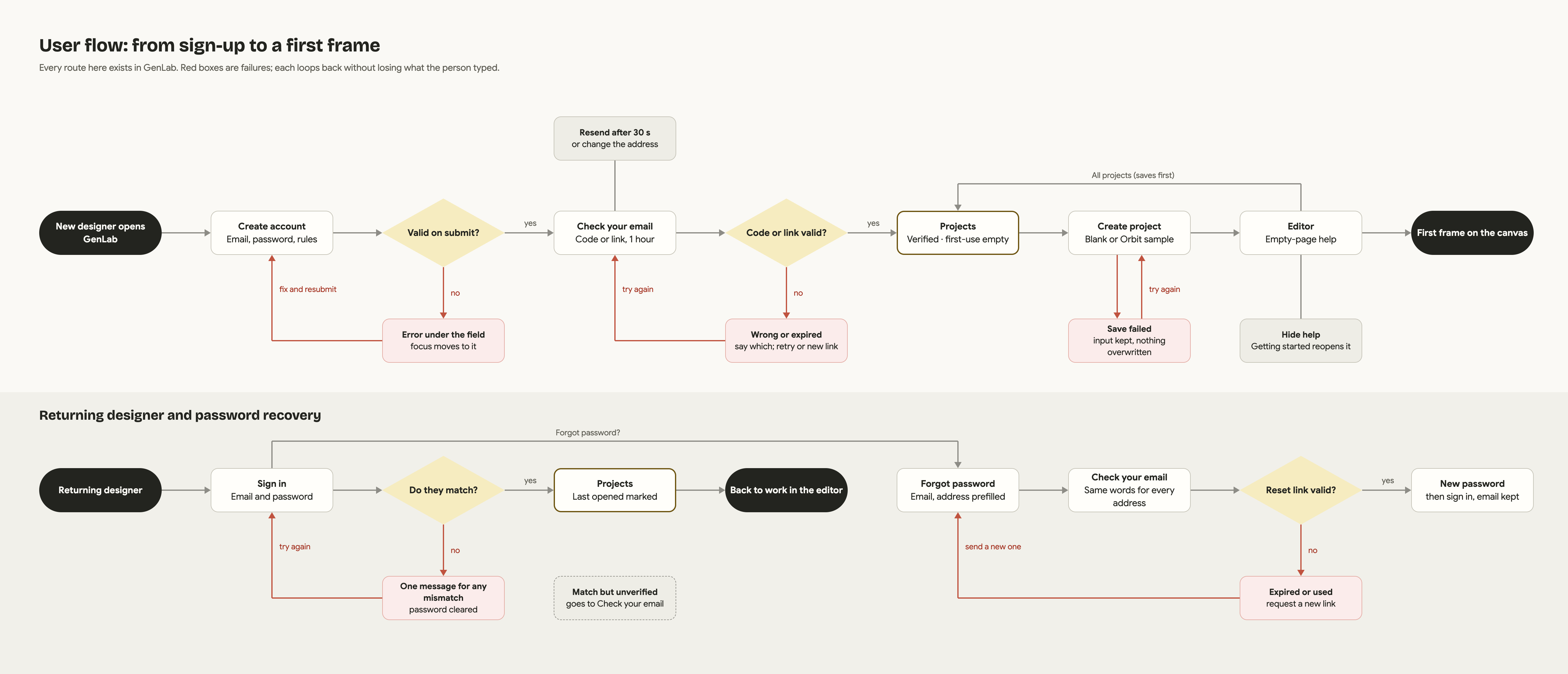
Open any board to zoom in and explore the details.
Explore → choose → test
One decision
at a time.
Three directions explored where the value story belongs and how much to ask for at once. The selected next iteration keeps the value panel beside an email → password → verification wizard.
The tradeoff is an extra tap. The question to test is whether separating the decisions makes the journey easier to complete.
Updated design concept · the existing demo uses a single account form.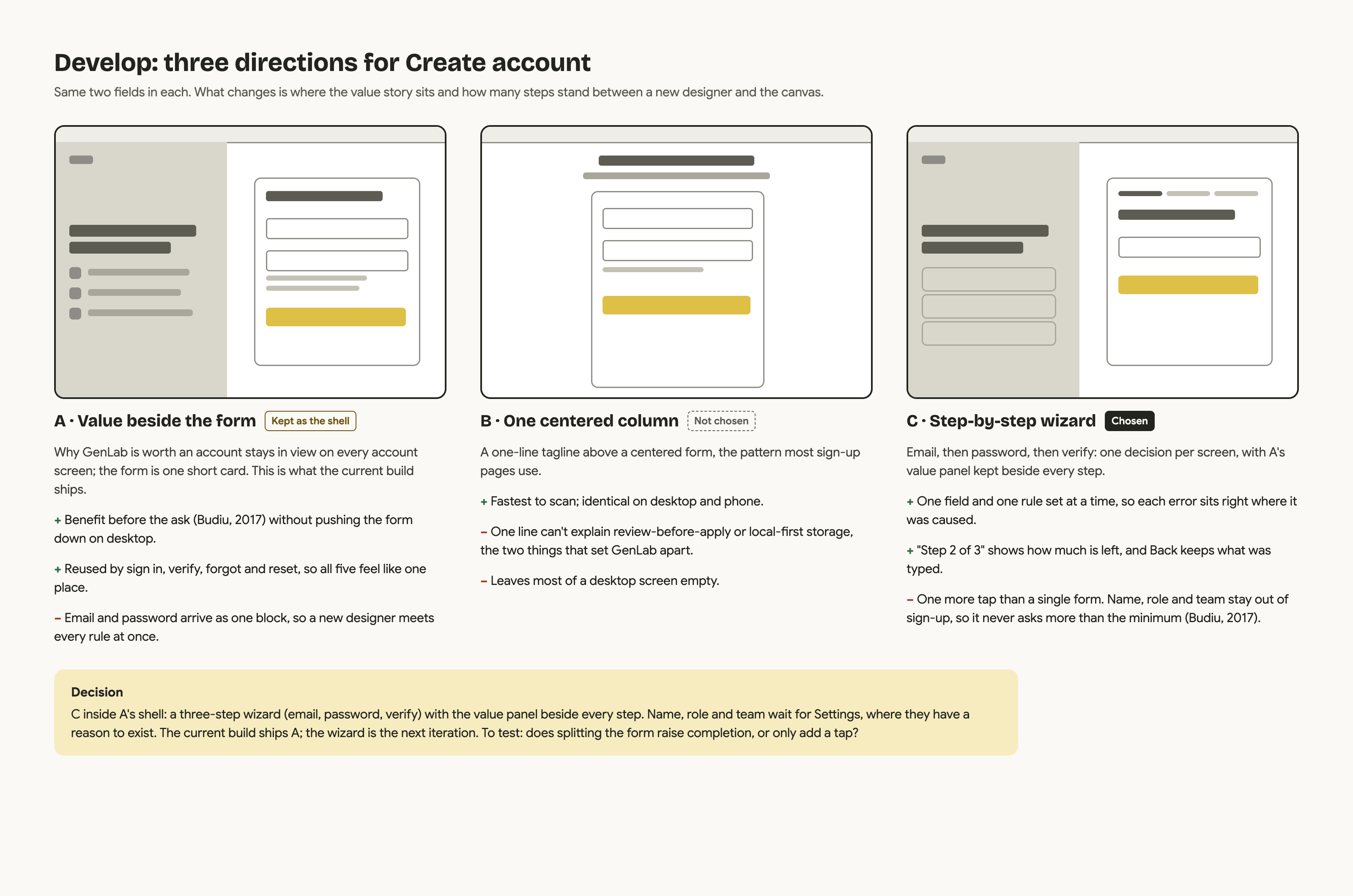
From the account to the canvas.
Explore five key moments in the updated design.
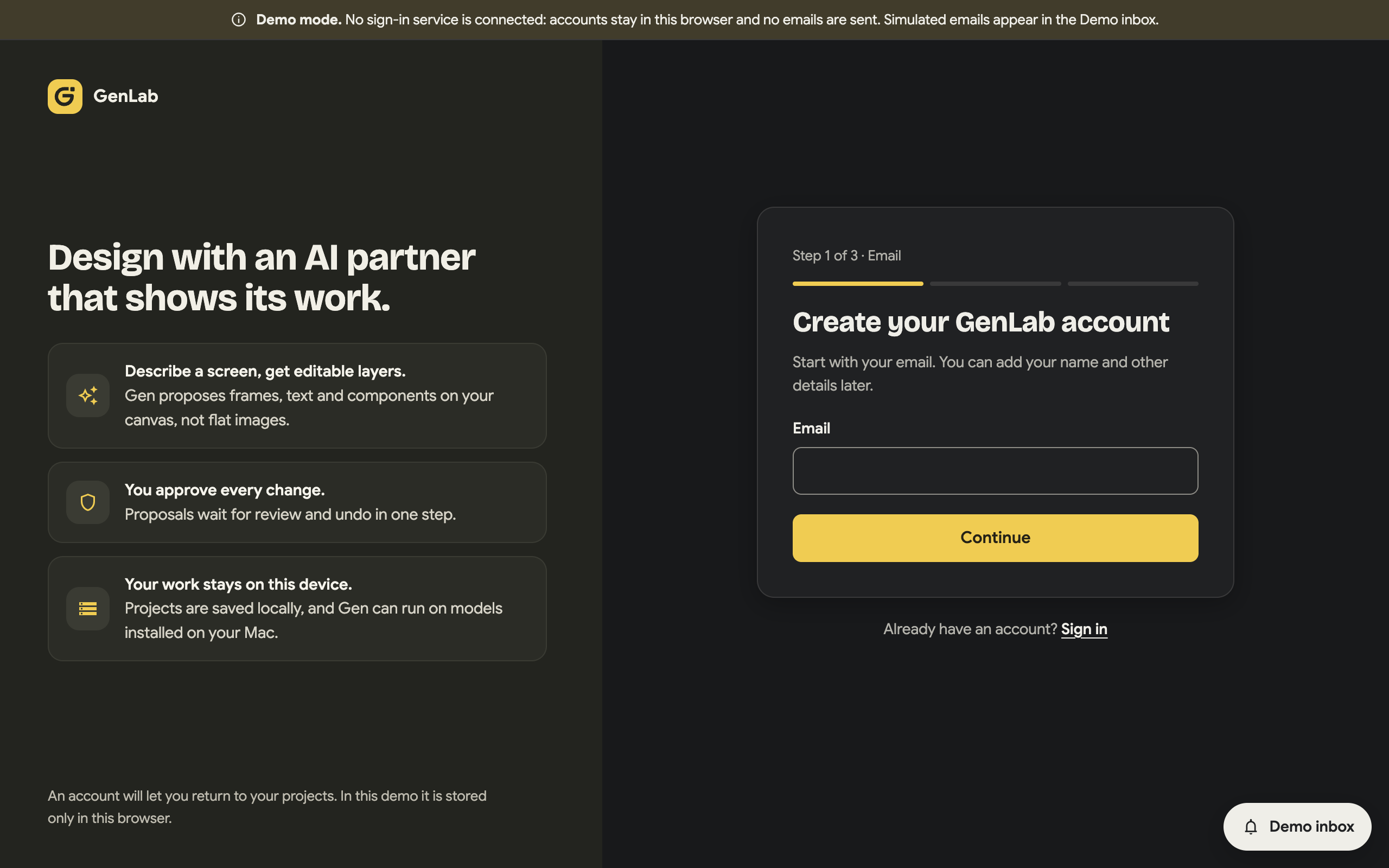
Updated account concept
Create an account
Explain the value, then ask for an email. The selected direction separates email, password, and verification into three steps, with profile details deferred until later.
Recovery belongs in the design.
Keep the next action visible when something goes wrong, without asking people to begin again.

Use the same message for an unknown address or a wrong password. Keep the email and offer a direct route to password recovery.
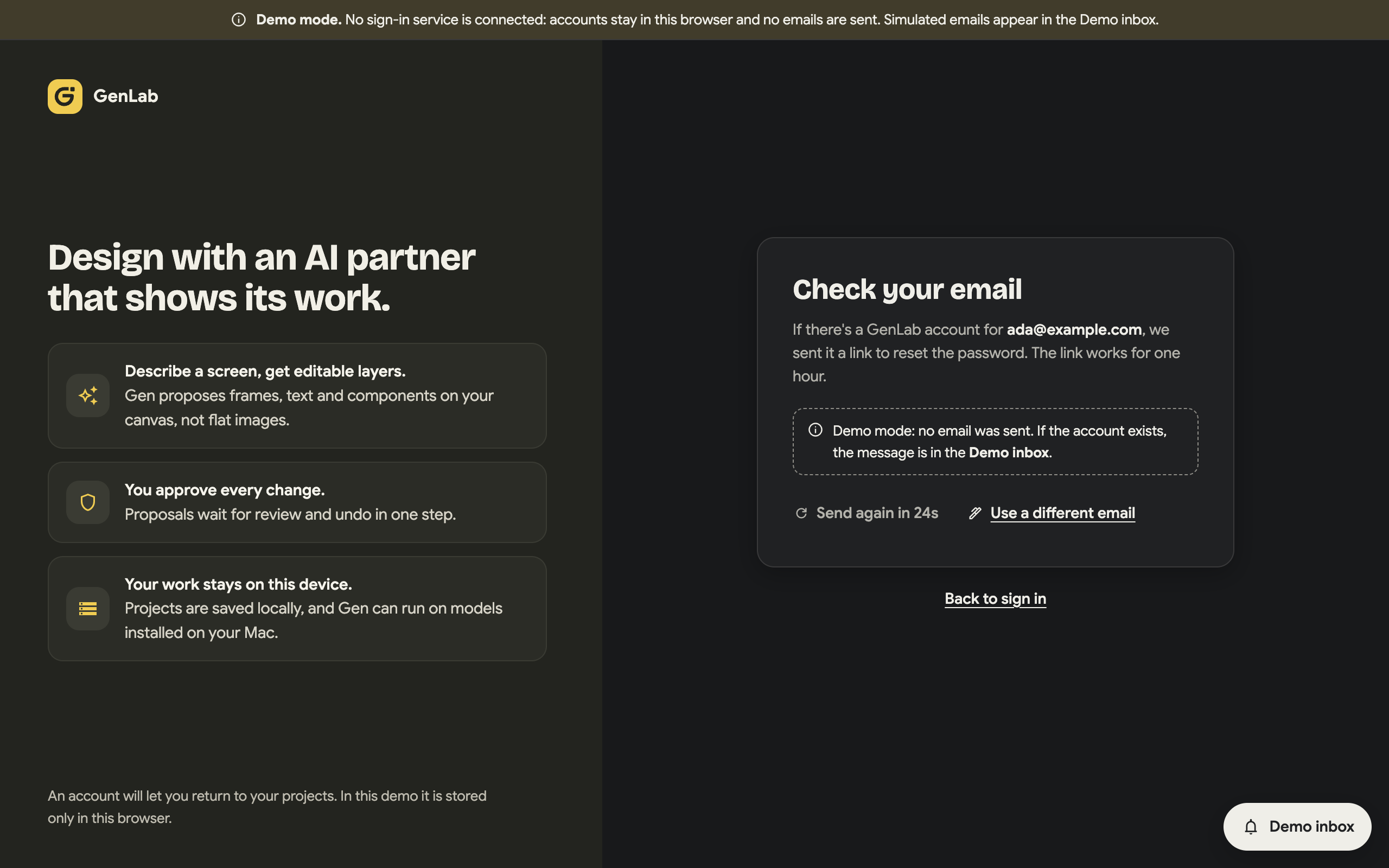
Confirm the request in the same way for every address, with a resend countdown and the option to use a different email.
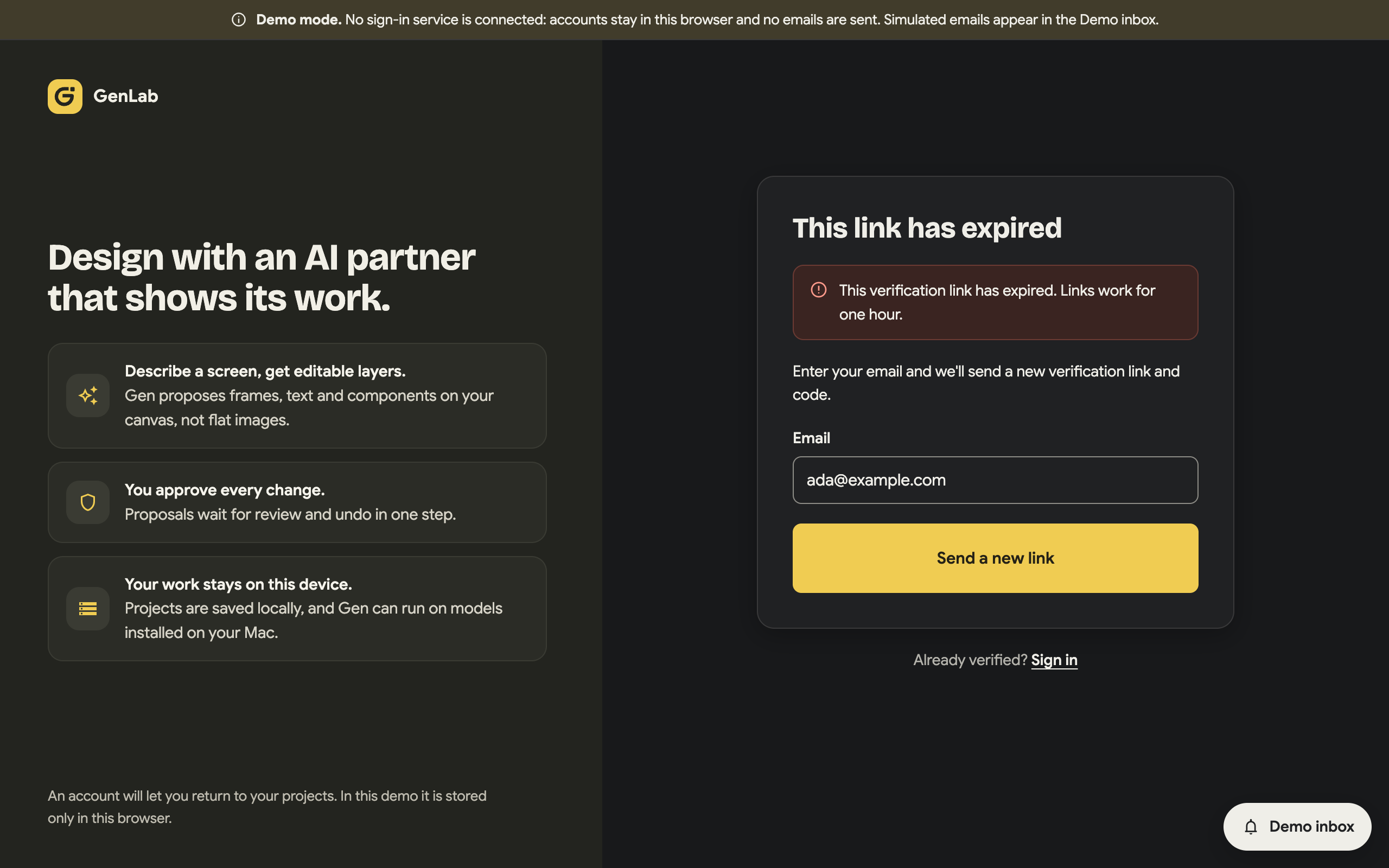
Explain what happened and provide the next action in the same place: request a fresh verification link and code.
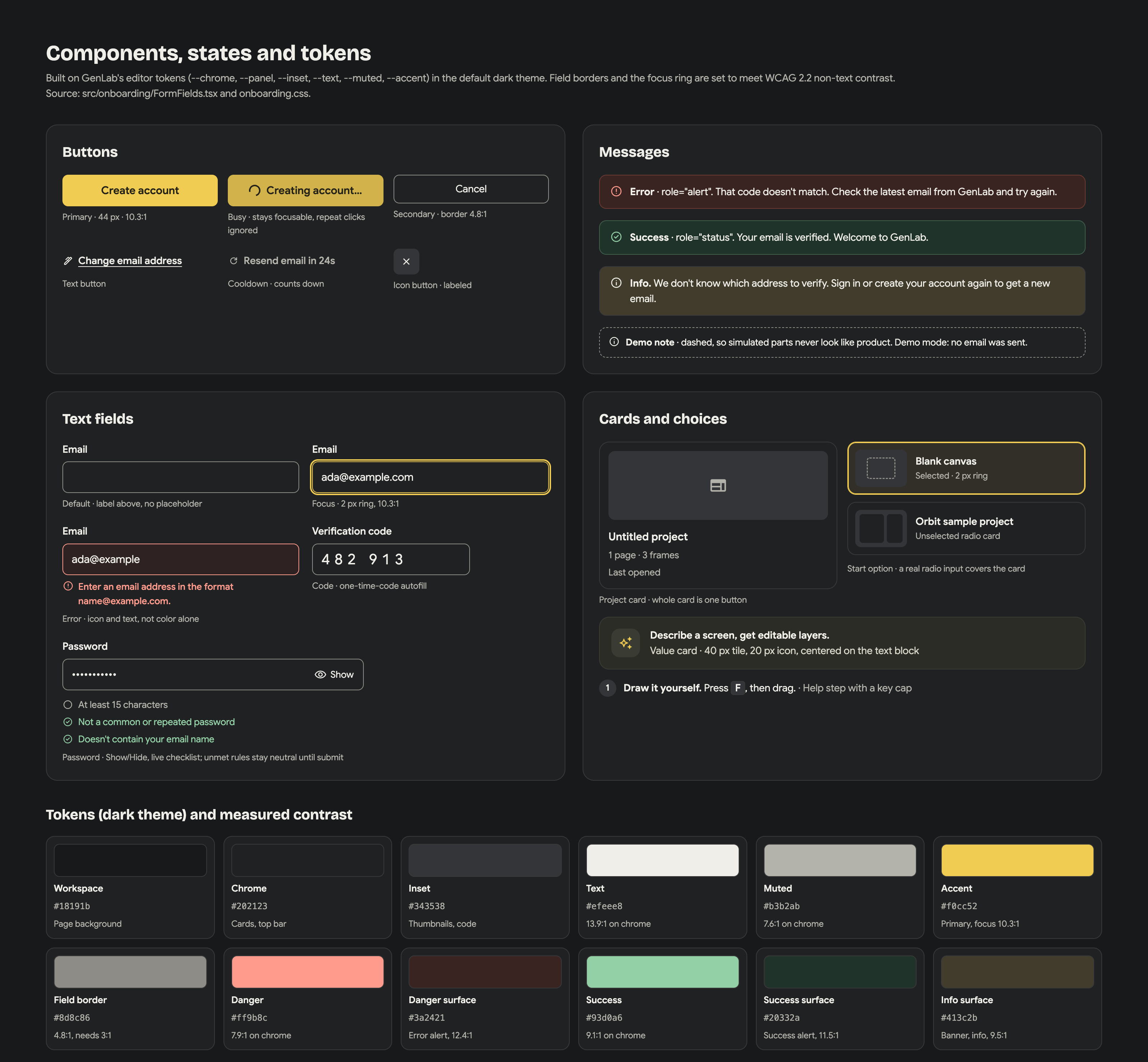
Behind the screens: components, states & tokens
Buttons, fields, messages, project cards, and theme tokens bring the account journey into the editor’s visual language. Errors use text and icons alongside color.
Built & explored
Account screens, validation, a local project library, and editor hand-off are documented in the demo. The canvas adds the selected step-by-step account concept.
What comes next
Test sign-up, correcting an email, and starting a project with designers. Accounts and email are simulated; connecting a real provider and measuring first-frame success remain next steps.
03 / Editable canvas
Shape the idea. Refine every detail.
GenLab is built around the work professional designers do by hand: arranging frames, choosing type, adjusting spacing, and organizing layers. An AI prompt sits alongside those tools, connecting assisted creation with direct control over the design.
04 / Design workspace
One workspace, your way of working.
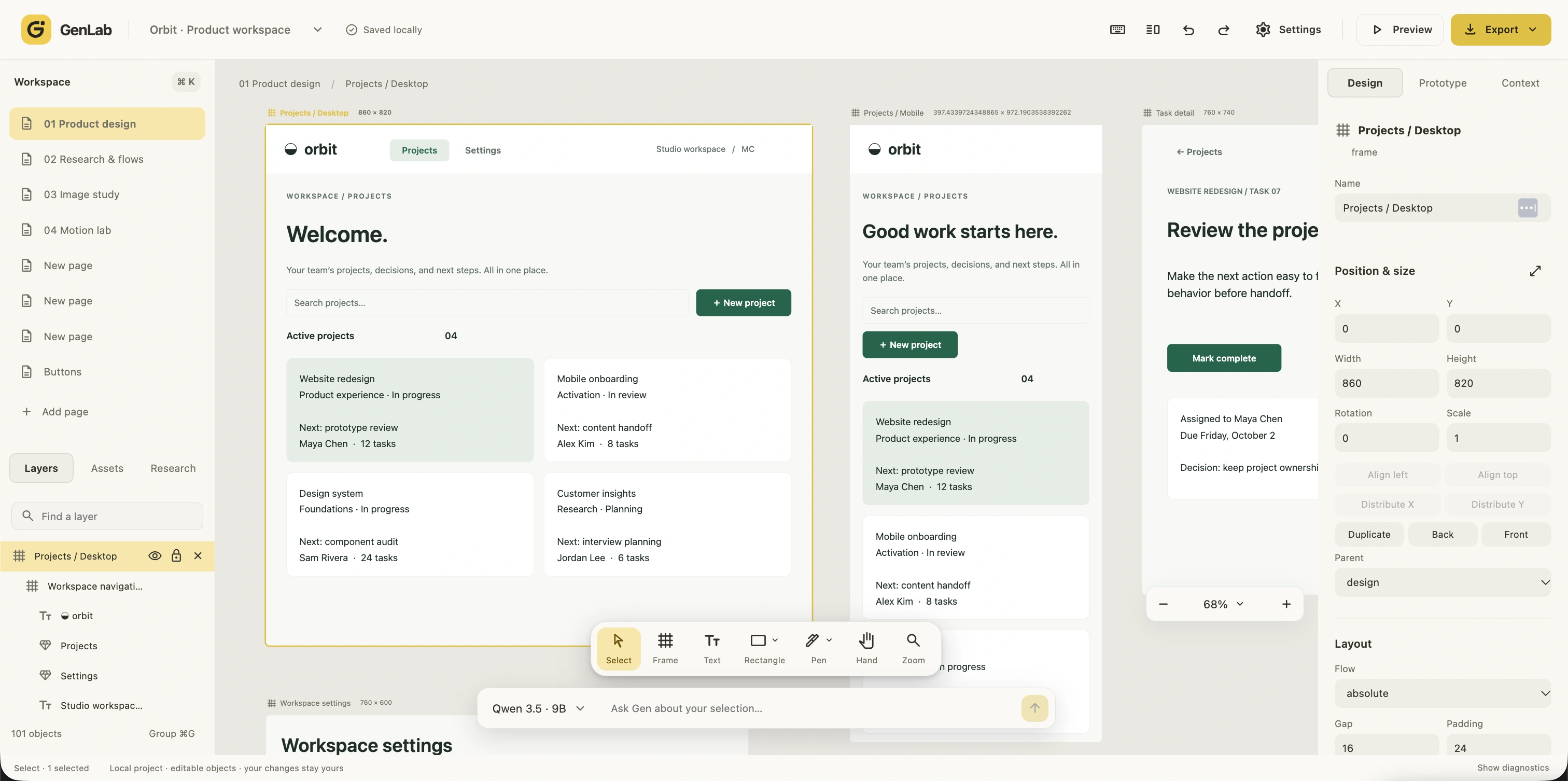
Desktop and mobile layouts share an editable canvas, with design properties and a floating toolbar close at hand. Light and dark appearances give the surrounding workspace a different feel while keeping the design itself and the tools in familiar places.
05 / Workspace grid
Structure for every detail.
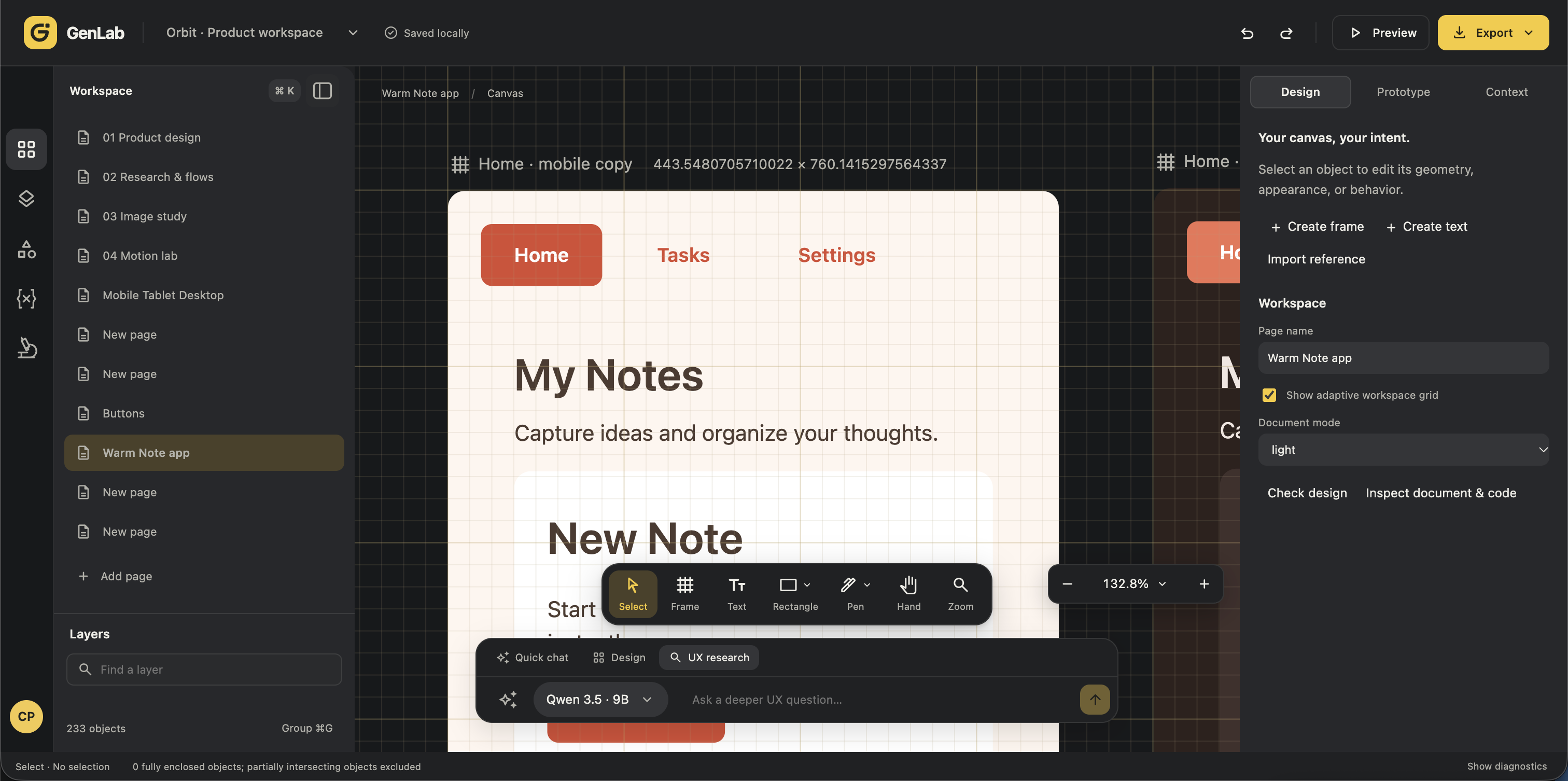
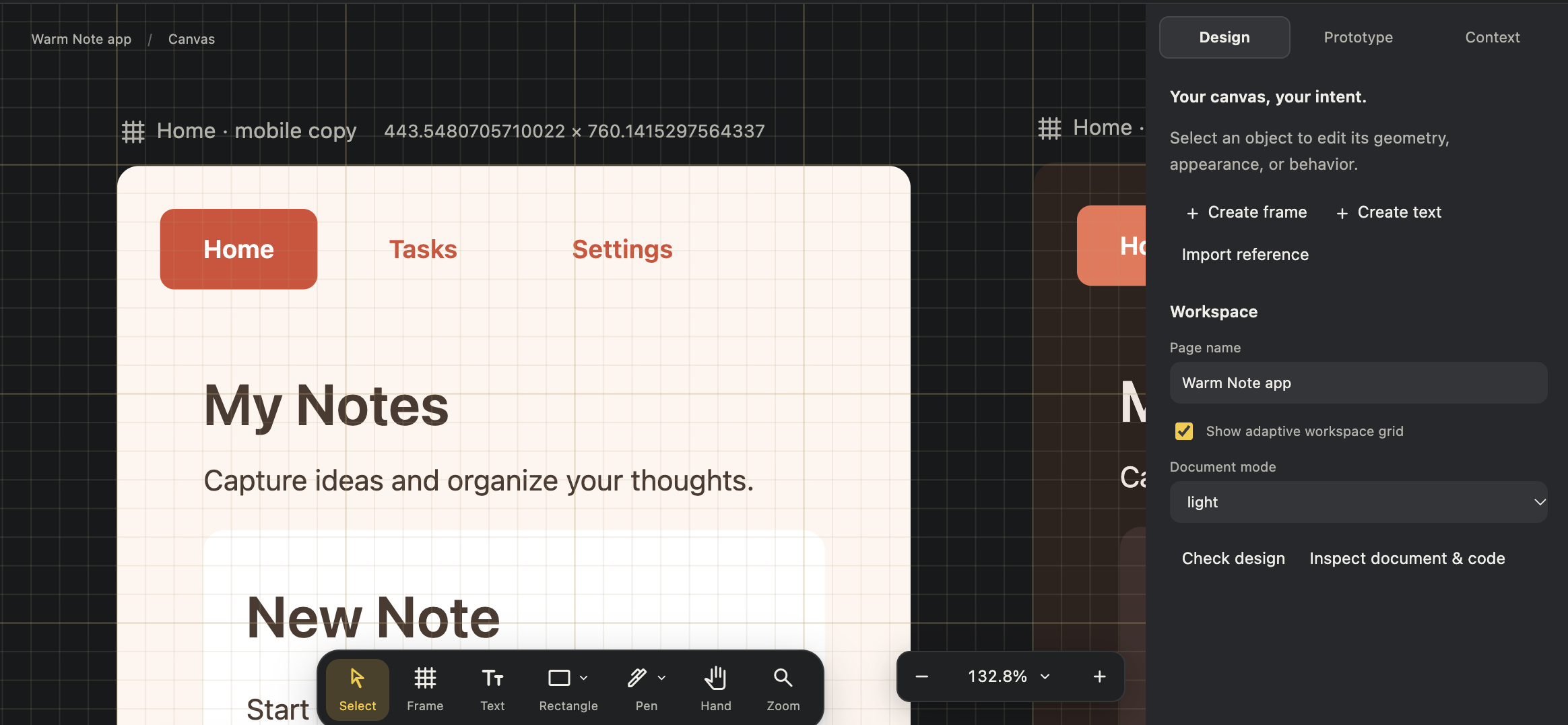
An optional workspace grid gives designers a shared reference for alignment, spacing, and proportion. Visible across the canvas and design frames, it supports close inspection while the grid toggle, design tools, and zoom controls stay within reach.
06 / Design system
One foundation. Two expressions.
Cool greens and warm terracotta give each design its own character. Named color variables keep background, surface, primary, and text roles clear across both systems.
Green system
Calm, clear, connected.
A deep green primary color anchors a crisp set of surface, text, and background variables.
View full capture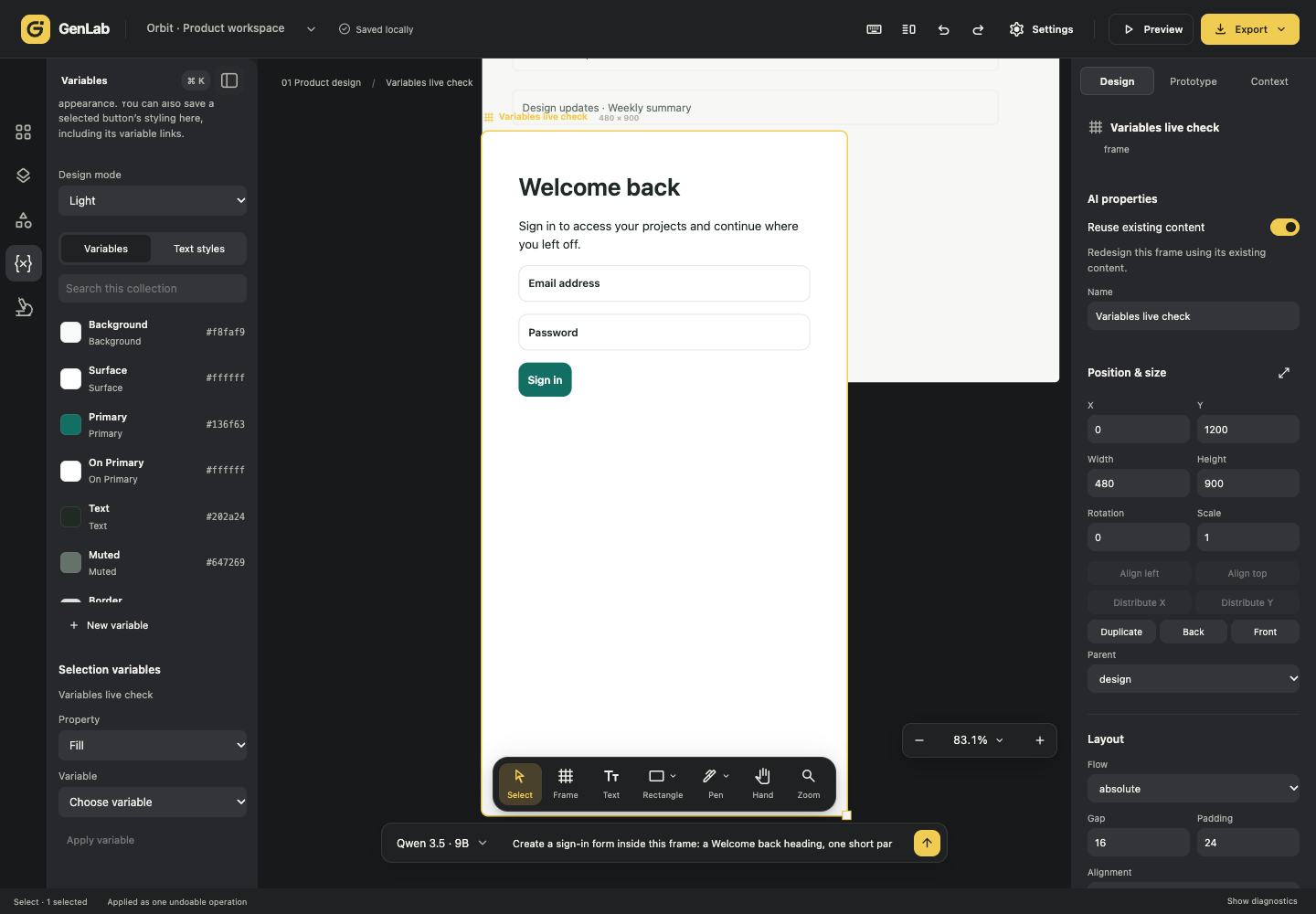
Terracotta system
Warmth, with the same structure.
An orange terracotta primary color pairs with cream backgrounds and warm neutrals in the same named roles.
View full capture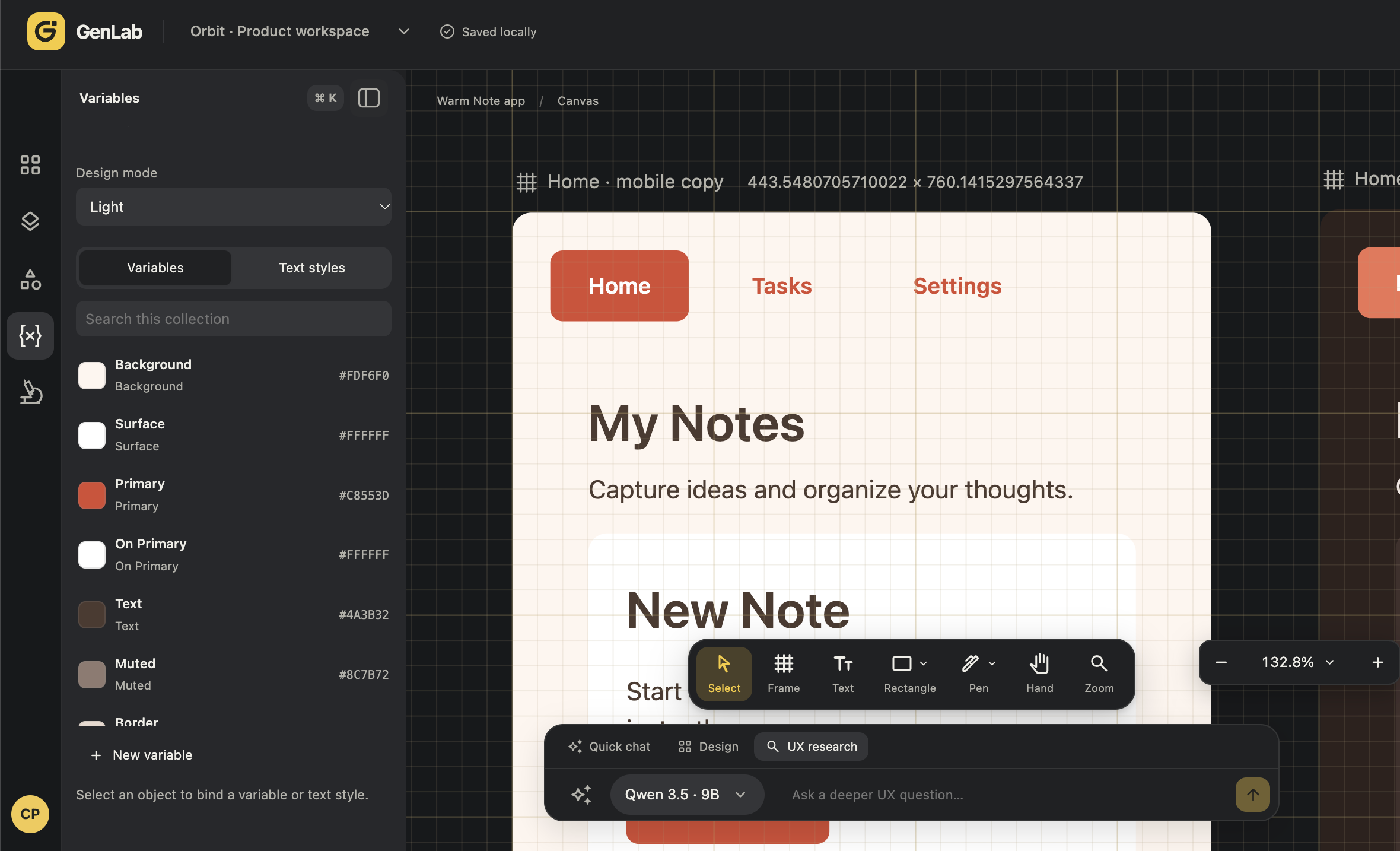
07 / AI assistance
AI power. Designer control.
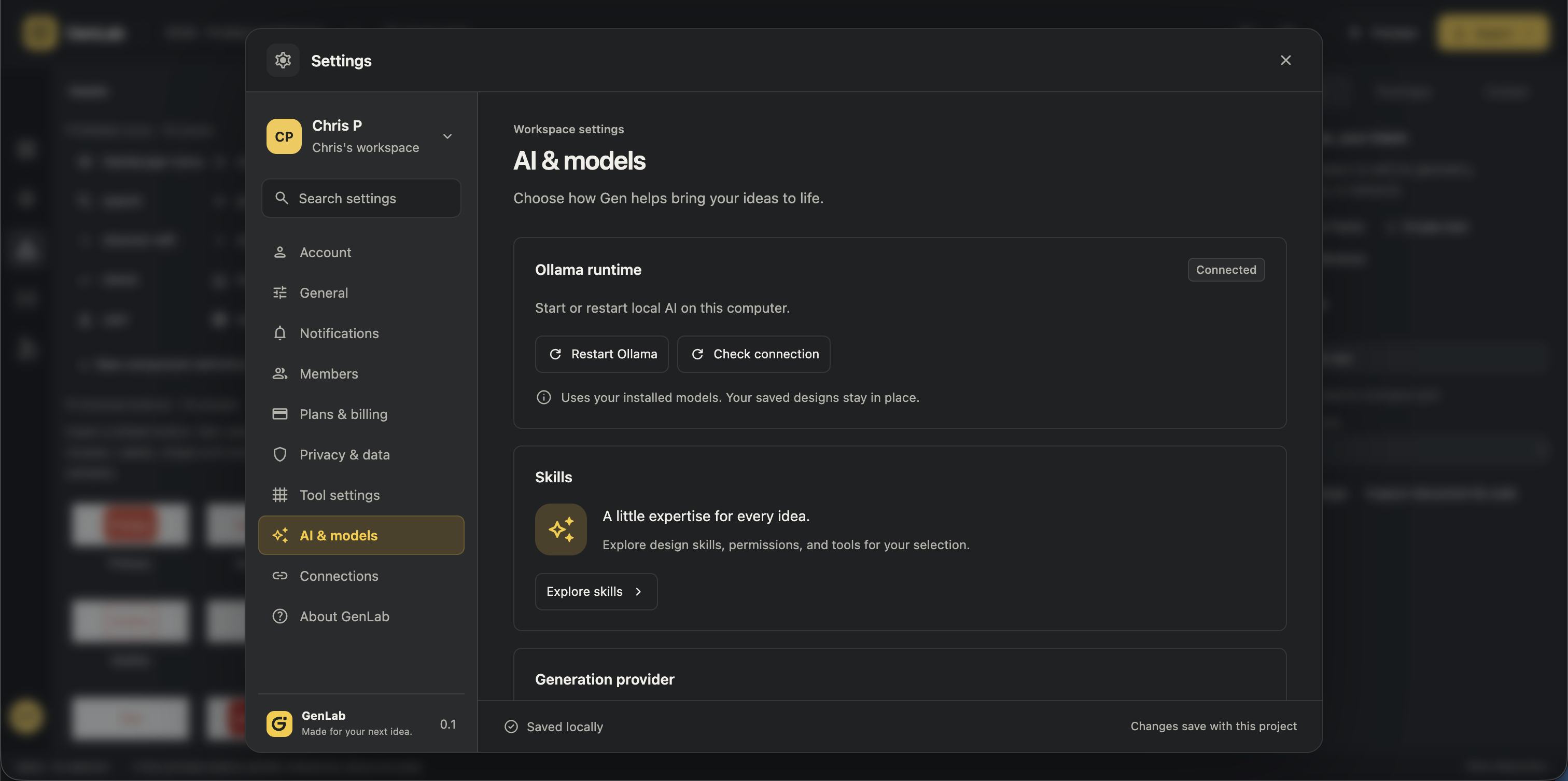
The AI experience makes skills, provider selection, and model availability visible. Guidance around reviewing generated changes keeps the designer involved, with manual editing available throughout. The goal is one continuous workflow from an AI-assisted starting point to considered, professional design.
08 / Interface collection
The details around
the design work.
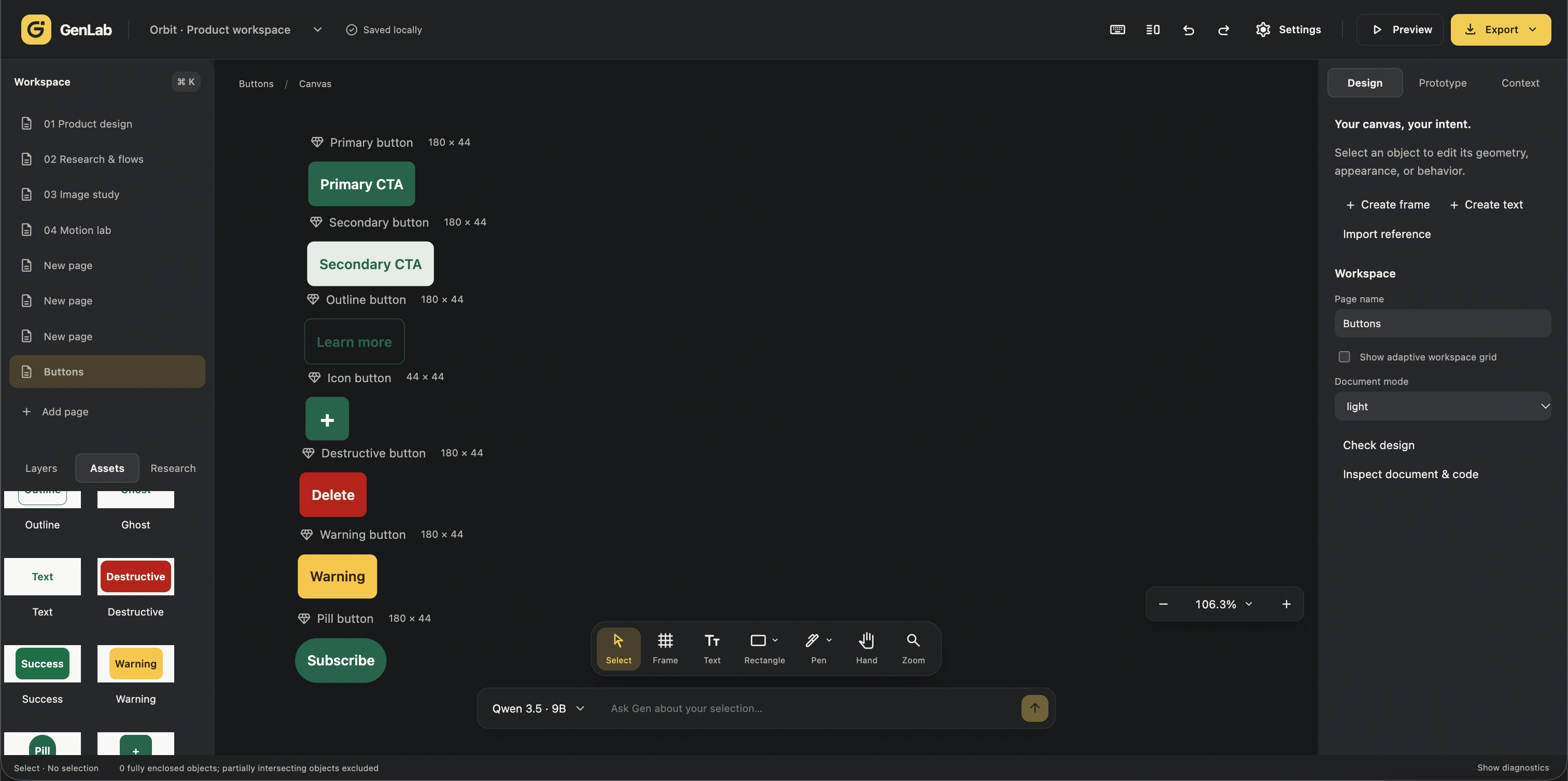
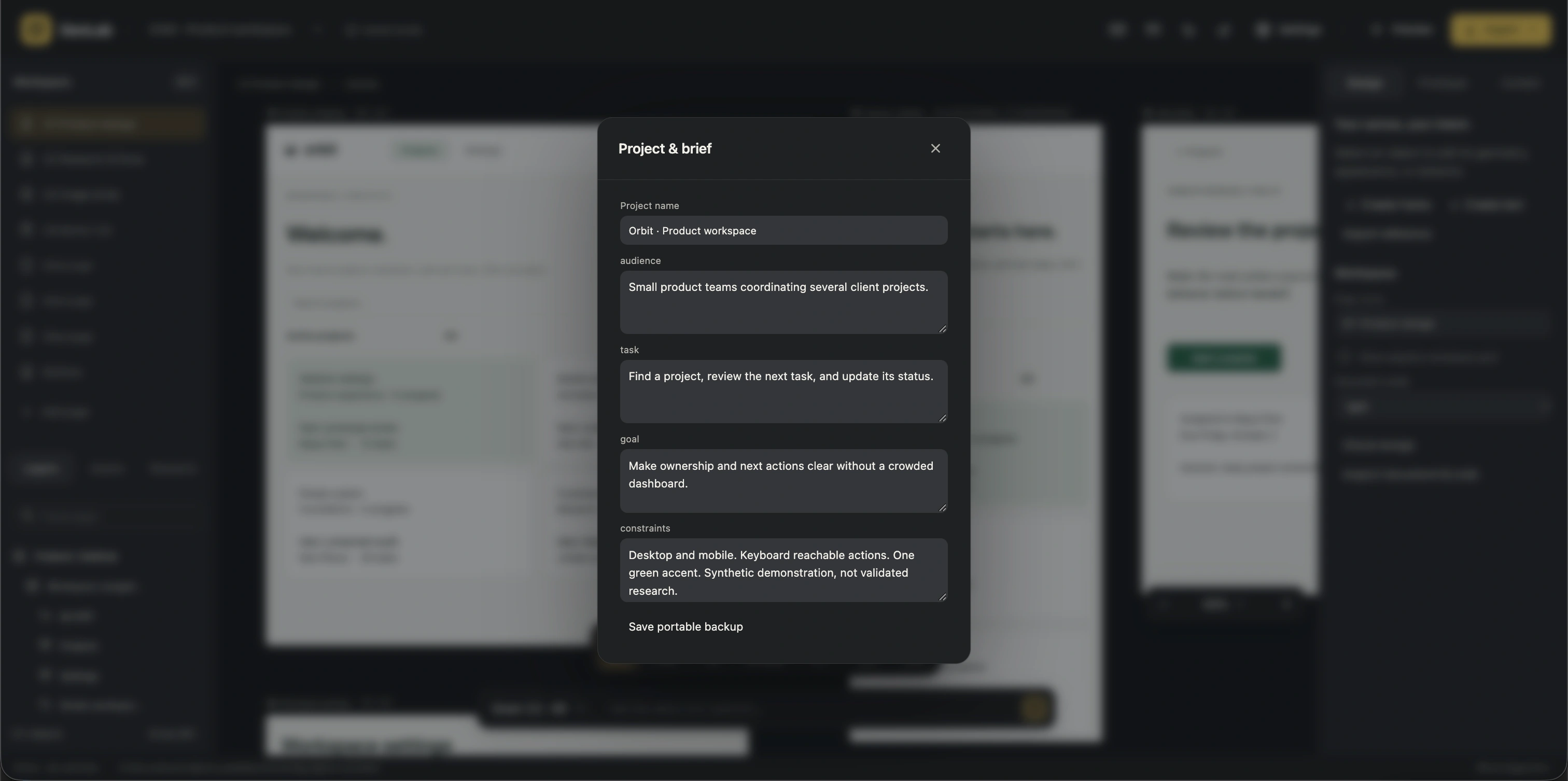
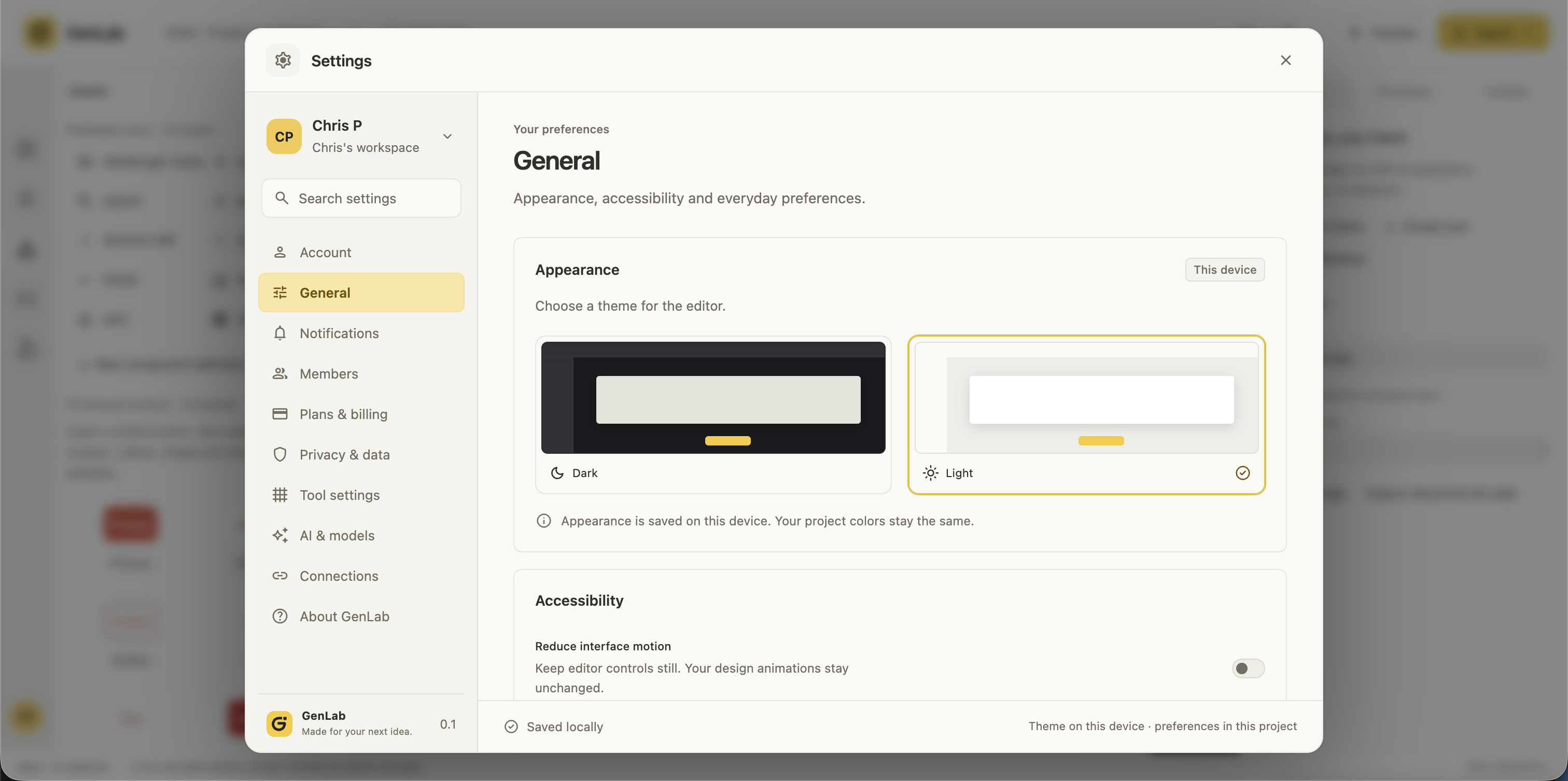
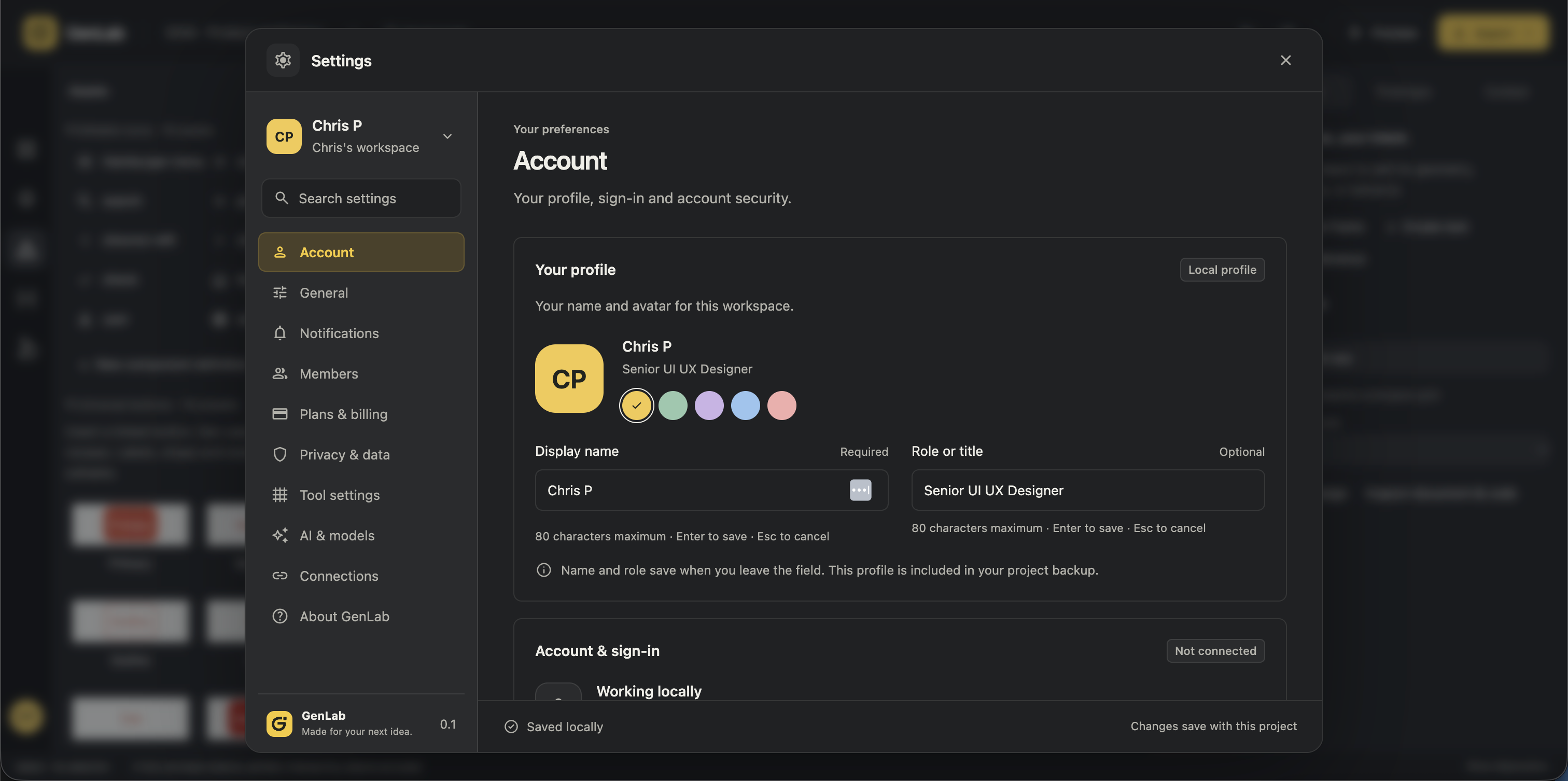
Explore editable button components, the brief that guides each project, and the settings that make the workspace personal—from appearance and motion preferences to profile details and account controls.